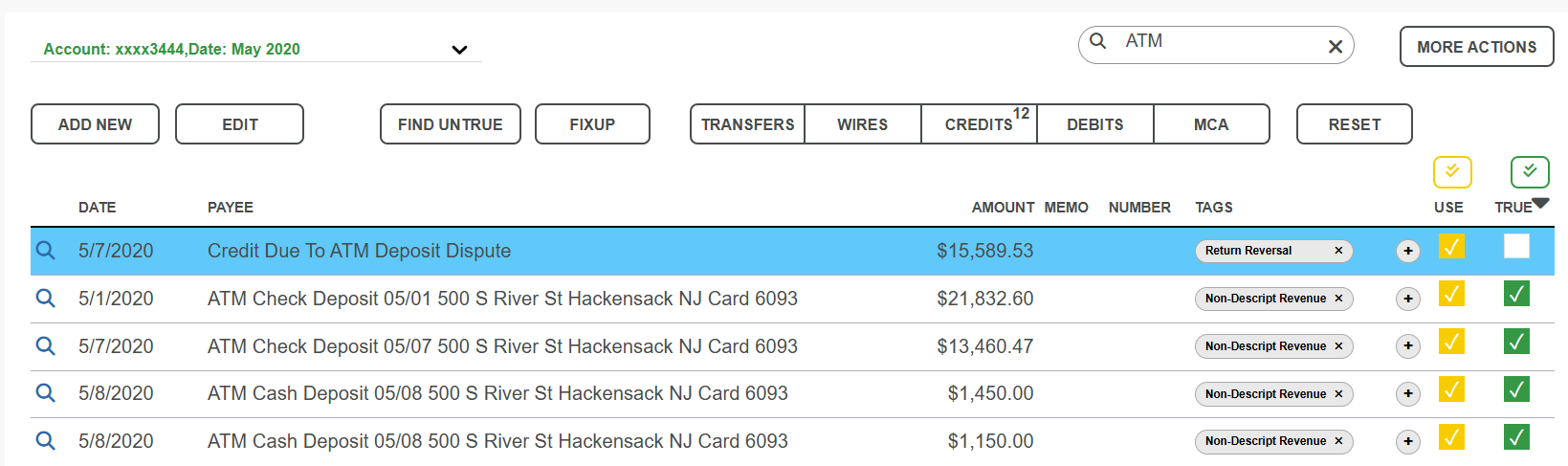
This guide shows you how to review statement details and how to filter them.
To review the details of a statement, click Review Statement.
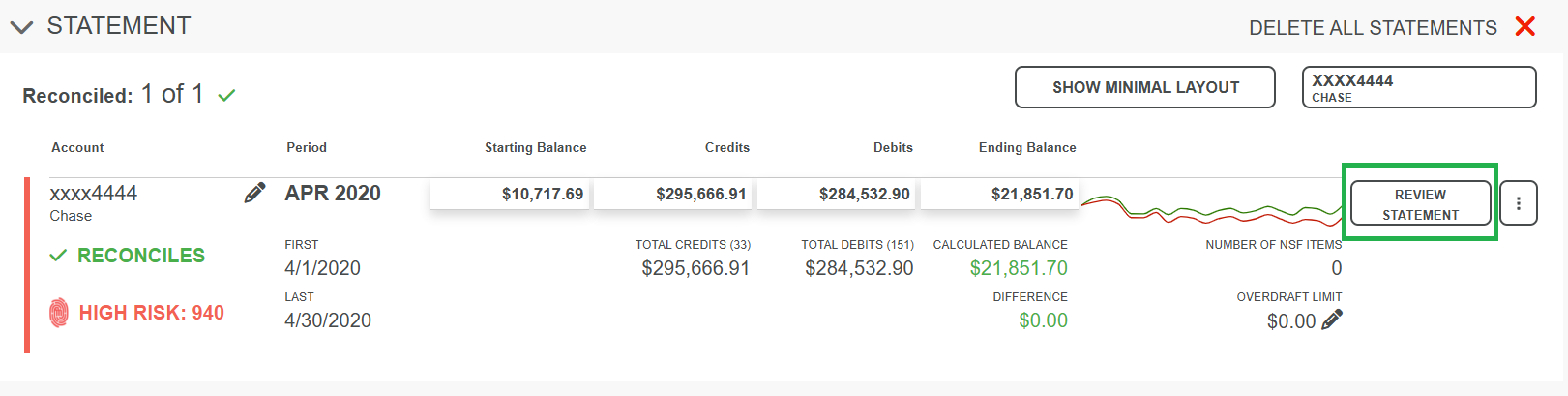
The statement appears. Here's an example.
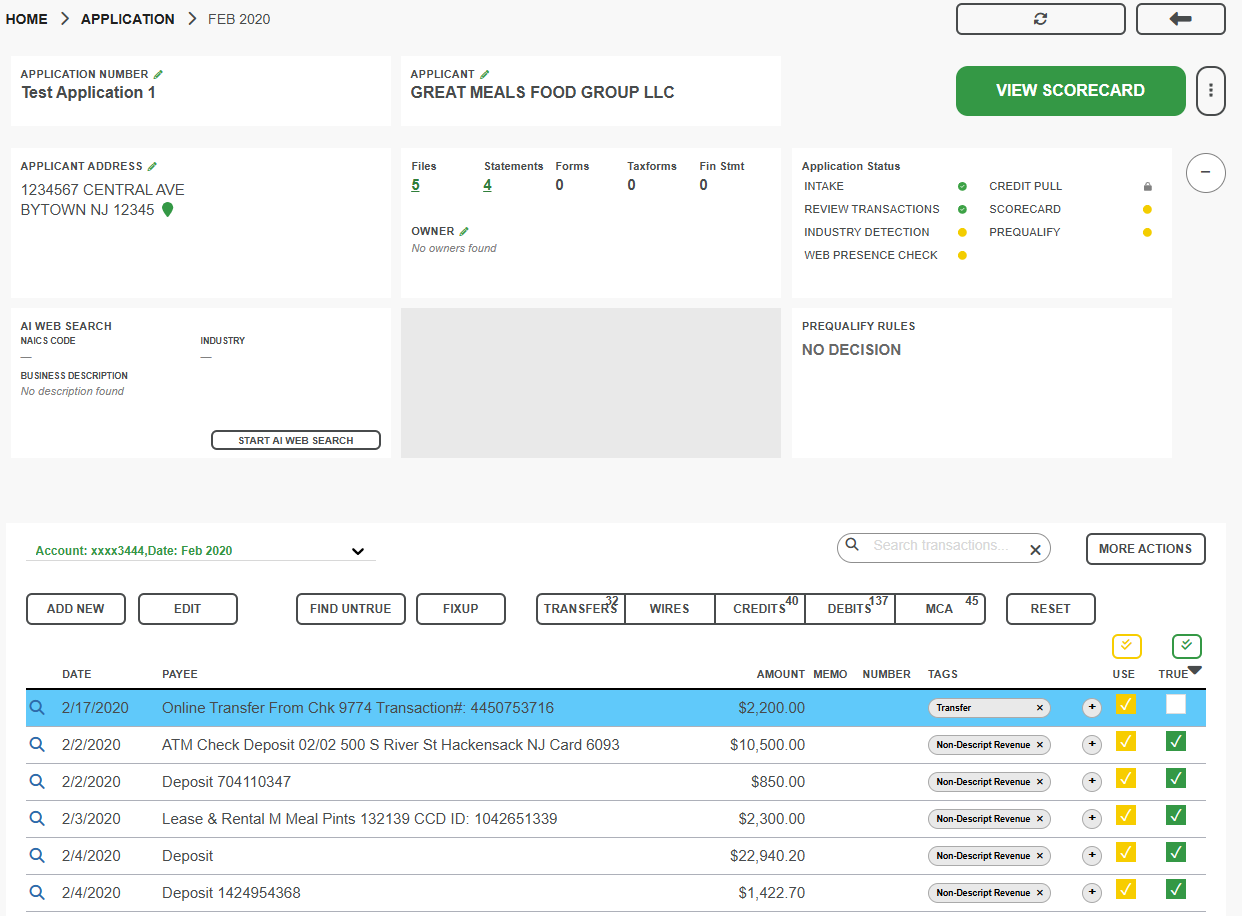
If you need to focus on certain details, you can filter the following:
- Accounts associated with a statement.
- Statement months.
- Types of transactions
- Number of entries you want to see.
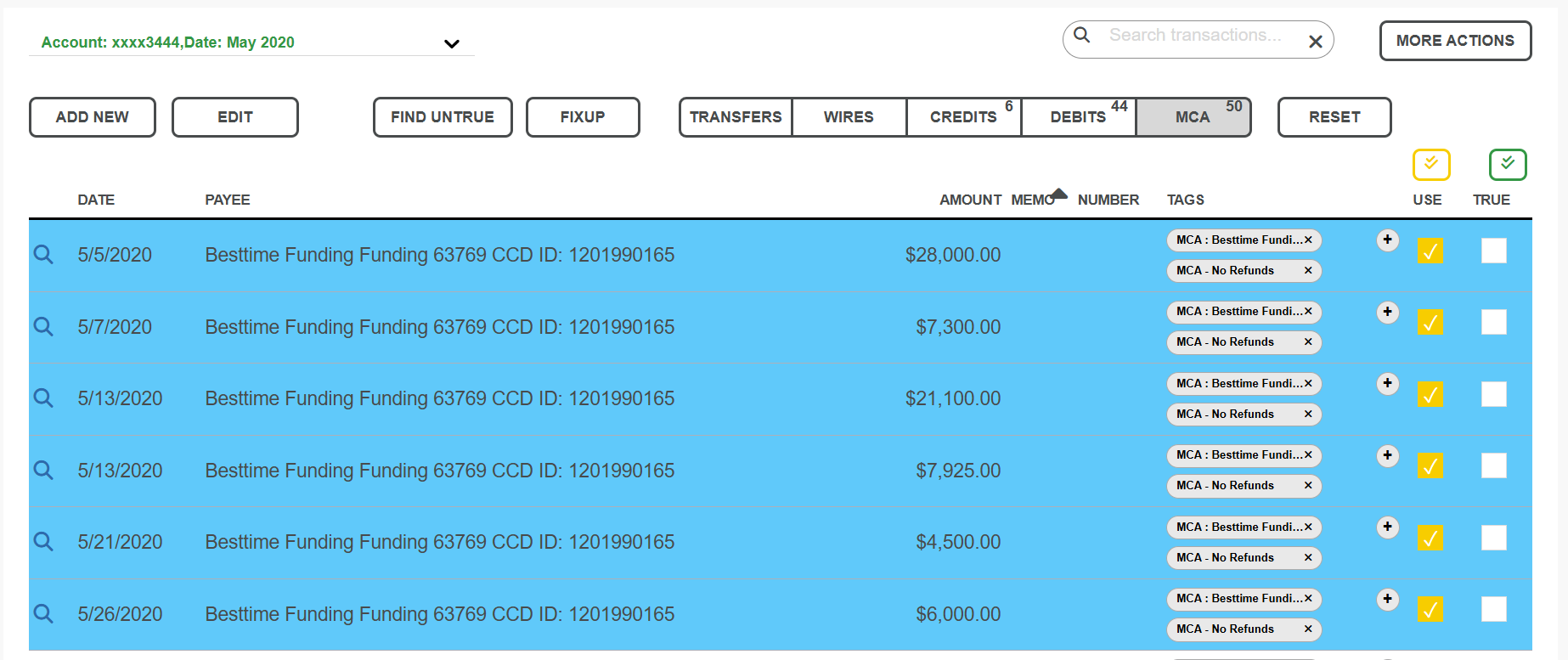
To filter by account and statement month, click the pull-down menu and select the account and statement month. See example.
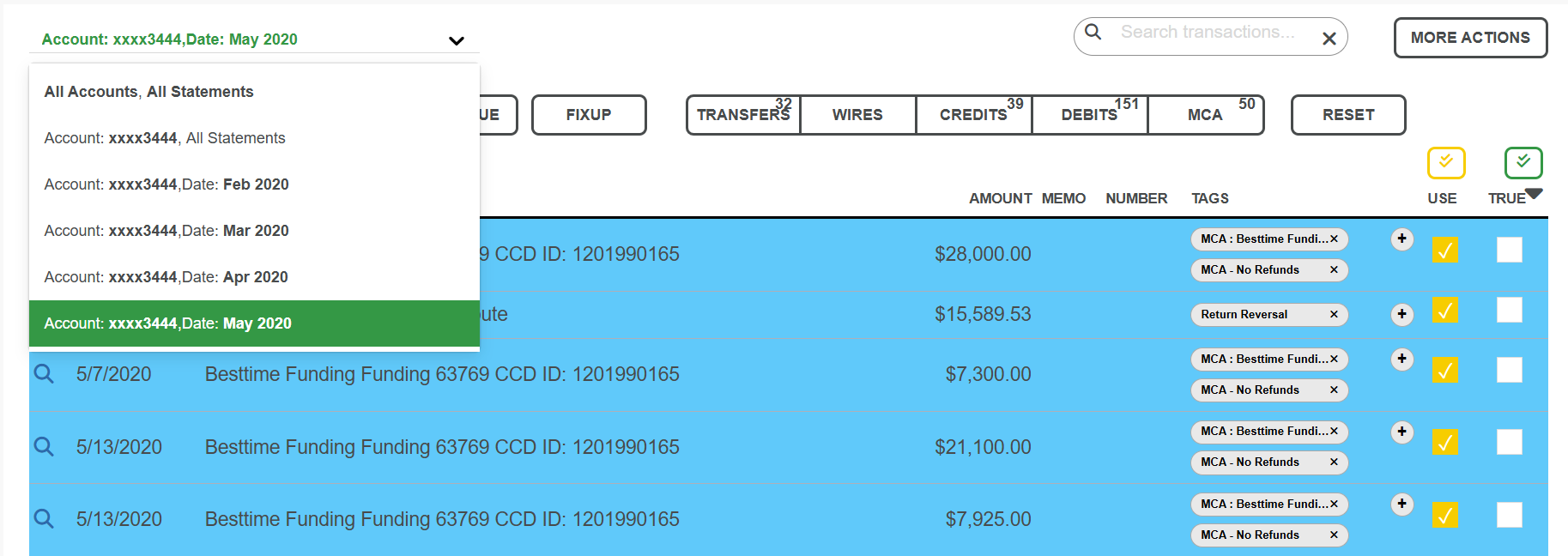
To filter by transaction type, click the desired option in the toolbar.

The filter buttons also display the count of transactions for each filter type. For example, if you click MCA, only MCA transactions appear.
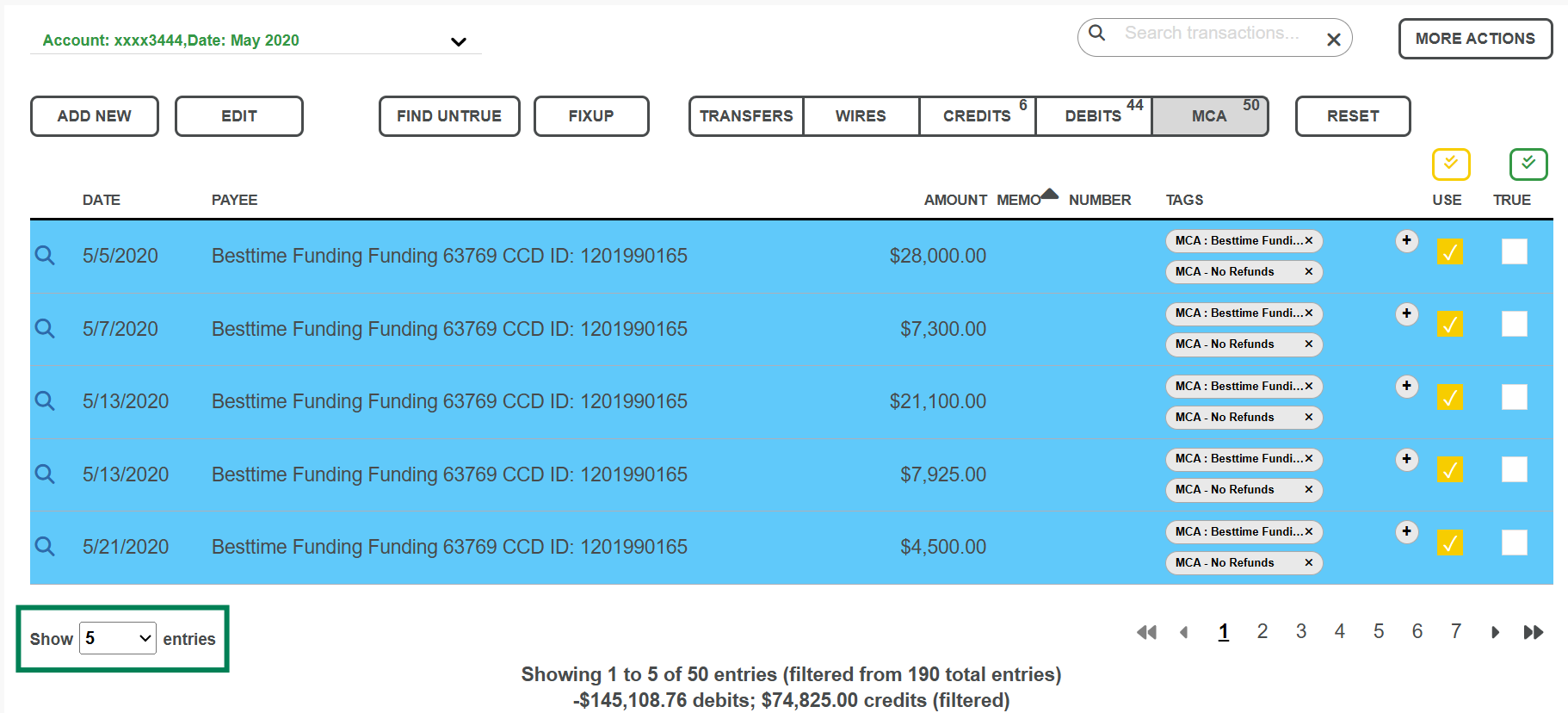
To control how many entries you want to see at once, select the number in Show entries menu. See example.
To remove the filters so you can see all transactions to statements again, click Reset.
 This won't undo the number of Show entries you set. To change the number, select the number from the drop-down menu.
To add a transaction to a statement:
- Click Add New.
- Add the transaction information in the Add New Transaction dialog.
- Click Add.
To edit an existing transaction in a statement:
- Click on the row of the transaction.
- Click Edit.
- Edit the transaction information in the Edit Transaction dialog.
- Click Save.
- Click Save Edits.
To search for an individual transaction, type it in the Search Transaction search box. See example.