 MoneyThumb Briefcase is in beta. If you want to access it, please contact MoneyThumb Support.
MoneyThumb Briefcase is a secure, in-platform application sharing network on PDF Insights that connects brokers and funders. Briefcase allows sharing and receiving of applications quickly by trusted connections. So, you can collaborate directly with your partners using our platform.
There are two parties in a Briefcase connection: Sender and Receiver.
Who is a Sender: A sender is any user who shares applications with connections.
Who is a Receiver: A receiver is any user who accepts applications from connections.
To enable Briefcase:
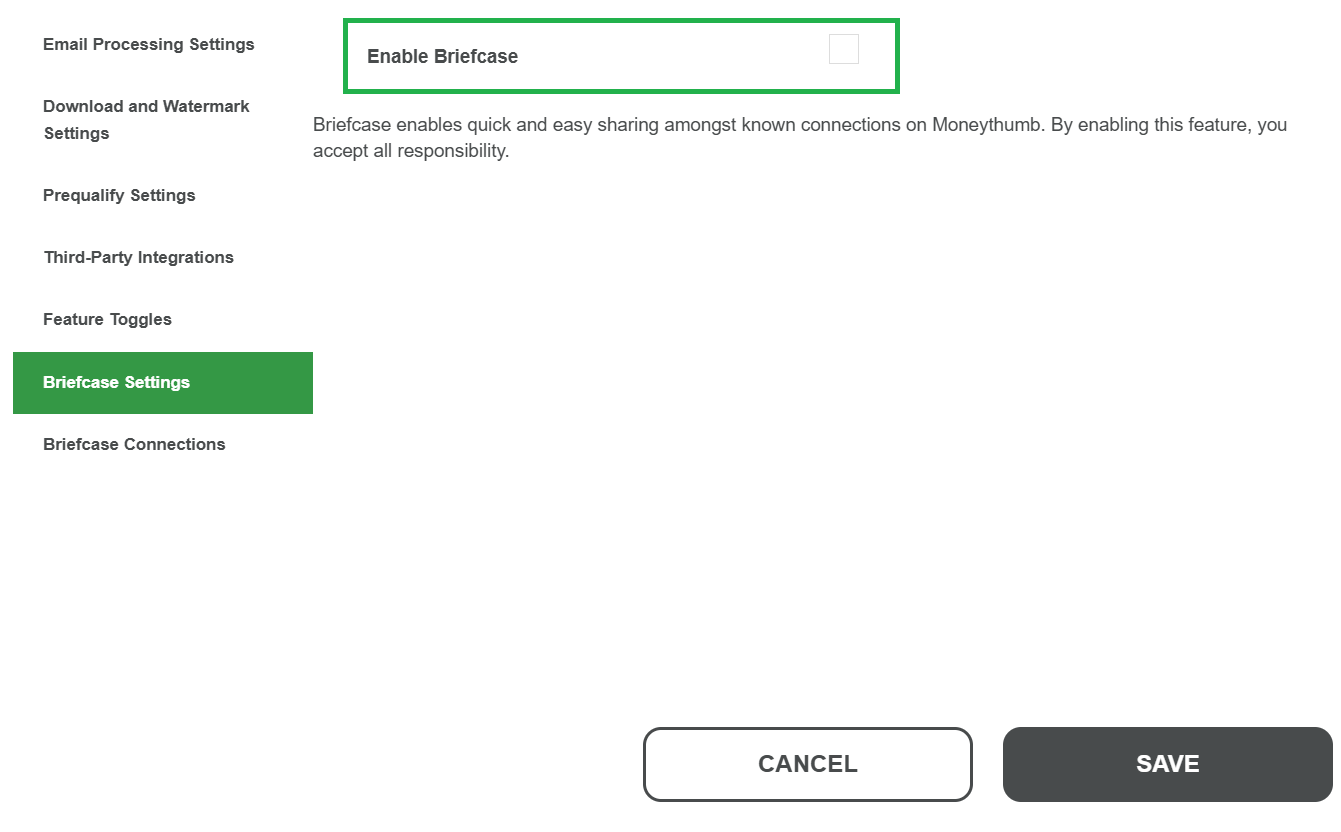
- Go to Company Settings.
- Select Briefcase Settings and click the Enable Briefcase box.
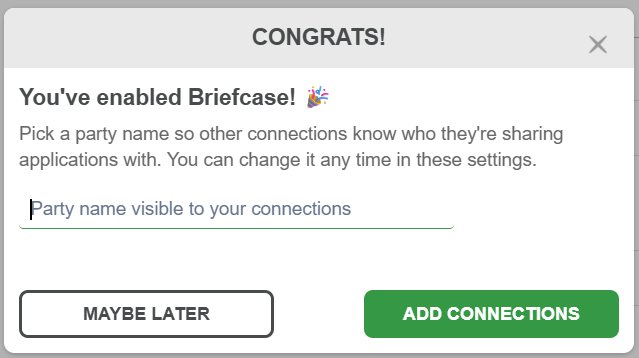
- When the Congrats screen appears, add your company name and click Add Connections.
Fill out your information in the following fields:
- Briefcase Connection Emails: Allows connection invitations sent to the following email addresses to be accepted or rejected. Recommended for both UI or API usage.
- Briefcase Sharing Emails: Notifies the following email addresses when applications are shared with you or status updates for the applications you have shared with connections. Recommended for UI usage.
- Briefcase Webhook URLs: Triggers a webhook call when applications are shared with you or status updates for the applications you have shared with connections. Required for API usage.
Click Save.
Once you enable Briefcase, all underwriters have sharing access by default. To restrict a specific underwriter:
- Open Underwriter Settings and edit the permission.
- Navigate to the Briefcase Sharing tab.
- Uncheck the Briefcase Sharing checkbox.
This prevents that underwriter from sharing applications with connected Receivers.
Only Administrators can send, accept, or reject Briefcase connection invitations. If you’re an administrator:
- Go to Company Settings.
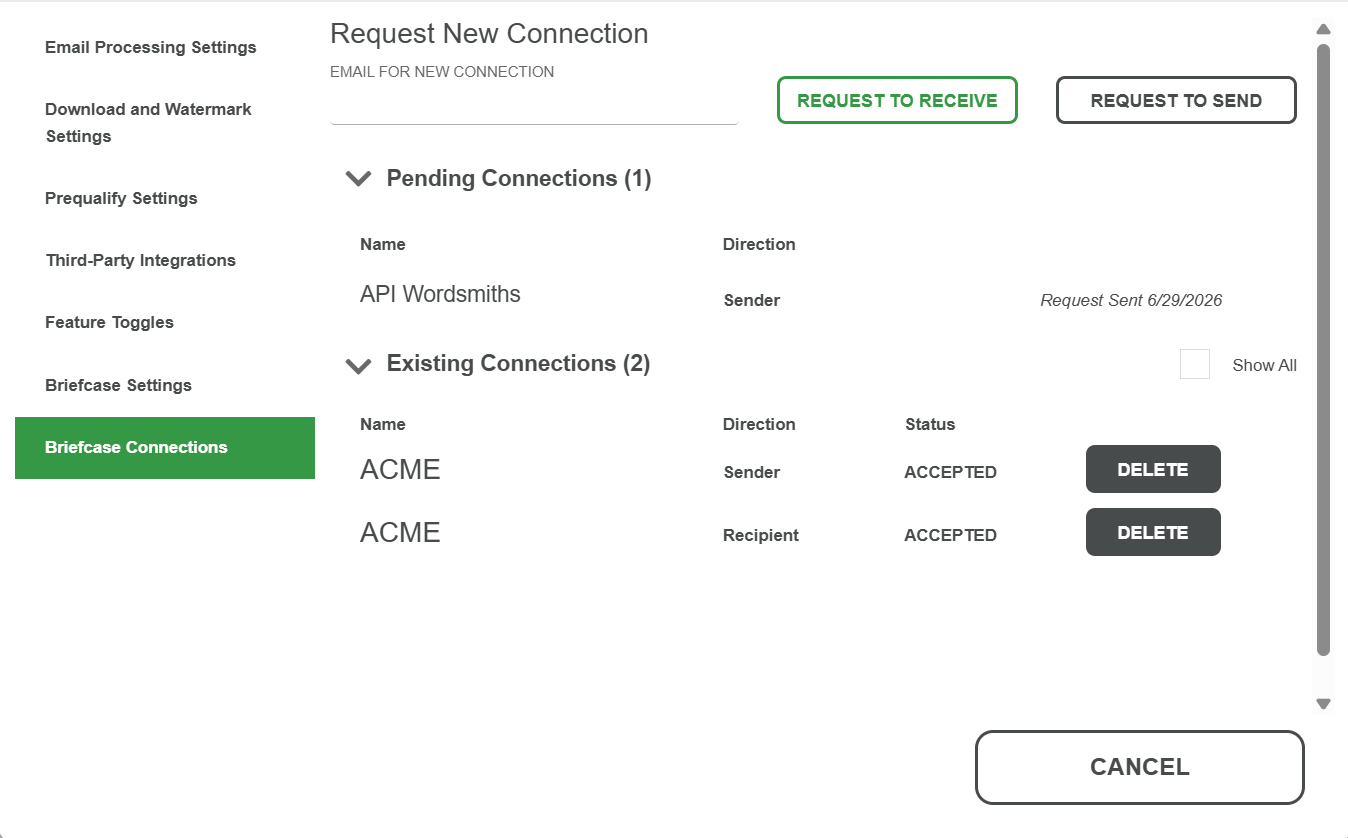
- Select Briefcase Connections.
- Enter the desired email address.
- If you're the sender, click Request to Send. If you're the receiver, click Request to Receive.
You can either view a Briefcase connection from Insights UI or from Insights API.
In Company Settings under the Briefcase Connections tab, the connections table displays all active connections, including each connection's name, sharing direction (Sender or Recipient), and status. From this table, you can also delete active connections.
🔎 Here's an example of viewing a Briefcase connection.
The GET /briefcase/connections endpoint returns an array of all connections. Each record includes:
inviterPartyKeyinviterPartyNameconnectedPartyKeyconnectedPartyNamedirectionstatusproposedDateTimeresponseDateTime
⚠️ Important: To send applications via the API, you need connectedPartyKey.
You can either share an application in Briefcase from Insights UI or from Insights API.
Create or open any application.
Locate the Share button in the upper-right.

When the popup appears listing your active Recipient connections, select one or more and confirm to send the offer. Once you share the application, the Share button becomes Sharing with a notification. If you hover over the button, you can see its status.
🔎 Here's an example.
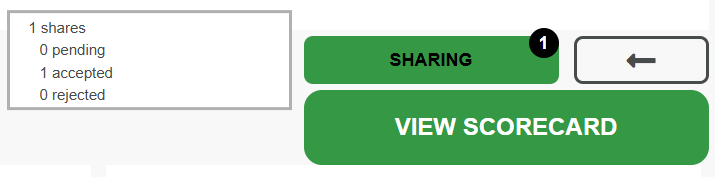
Receivers configured with email or webhook notifications will be alerted immediately. The Insights UI users can see a notification on the Home Page, indicating pending incoming shares.
The Briefcase Applications tab appears on the Home Page. This shows the applications that are in Briefcase. As the receiver party, when applications are shared, this tab populates.
🔎 Here's an example.
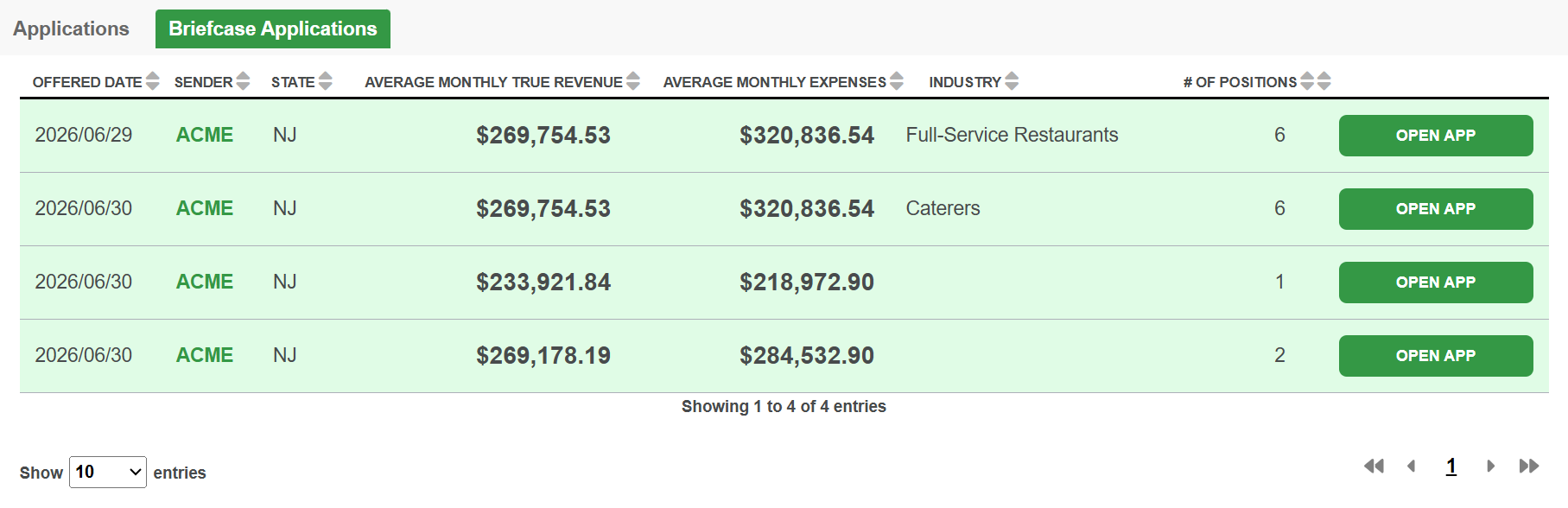
When you click Open App, you open the application of the receiver party. The Share button at the top becomes Shared App.

This shows the application was shared to you by the receiving party.
- Authenticate to PDF Insights via the
/authenticateendpoint. - Use the
/briefcase/connectionsendpoint to retrieve thepartyIdsneeded to share applications. - Call
POST /briefcase/sharewith theappIdand the array ofpartyIds, representing the desired Receivers, to share the application.
Insights API initiates a share with each specified party and triggers any configured email or webhook notifications on the Receiver's end.
When a new application or application update has been shared with you, an update will be sent to the Briefcase Sharing Emails or Webhook saved in the Company Settings.
On the Insights Home Page, a notification icon appears on the Briefcase Applications tab.
You can either accept an application in Briefcase from Insights UI or from Insights API.
A notification on the Briefcase Applications tab of the Home Page shows the number of pending incoming shares. Clicking the tab displays the list of offered applications with preview fields. You can either Accept or Decline the application.
Accepted applications create a new application in your account with all of the data shared automatically processed.
- Authenticate to PDF Insights via the
/authenticateendpoint. - Call
POST /briefcase/respondwith- The
shareKey(returned as part of the Webhook notification). - A response of
ACCEPTorDECLINE. - Optionally, an appNumber for the new application.
- The
- If accepted, Insights API copies the application into the Receiver's account and returns the new application ID. A
shareKeythat starts withS-indicates the share is a new application.
Once the Recipient accepts or declines an application, an update is sent to the Briefcase Sharing Emails or Webhook saved in the Company Settings.
In the UI, you can view application-specific status updates by opening the Share button to see Pending, Accepted, or Declined shares.
You can either add an application in Briefcase from Insights UI or from Insights API.
When new documents are added to an already-shared application, an orange circle appears on the Sharing button. An Update Needed notification appears to prompt sharing the update with all of the Receivers.
The Receiver sees a notification that new documents have been shared with the option to accept or decline the documents. If a Receiver hasn't accepted an application before an update is shared, they receive all current documents upon acceptance.
Call POST /briefcase/update with the appId or appNumber of the previously shared application.
Insights API pushes the update to all Receivers who have already accepted. It also modifies the pending offer for those who have not yet responded.
This triggers configured email and webhook notifications just like initial shares.
You can either update an application in Briefcase from Insights UI or from Insights API.
Within a shared application, a notification appears on the Shared App button that indicates there are new documents from the Sender. By clicking on Shared App, you can either accept or reject the updated documents.
- Authenticate to PDF Insights via the
/authenticateendpoint. - Call
POST /briefcase/respondwith- The
shareKey(returned as part of the Webhook notification). - A response of
ACCEPTorDECLINE. - Optionally, an
appNumberfor the new application.
- The
- If accepted, Insights API copies the application into the Receiver's account and returns the new application ID. A
shareKeythat starts withU-indicates the share is an update to a previously shared application.
You can view the history all applications shared in Briefcase using the Insights API.
- Authenticate to PDF Insights via the
/authenticateendpoint. - Call
GET /briefcase/history.