Want to stay in the loop with PDF Insights? Check out this changelog. It shows the new features and updates for the past 3 months. If you have any questions, feel free to reach out to Support.
Subscribe to receive notifications whenever we publish PDF Insights UI or API updates.
 This feature is in beta. If you have questions, please contact MoneyThumb Support.
You can now download a full credit report of an owner of an application in Insights UI. For details on how to do this, see Credit Pull Guide.
You can now add prequalify rules that include credit score results. For details about adding our beta Credit Score feature or adjusting your prequalify rules, contact MoneyThumb Support.

This feature is in beta. If you have questions, please contact MoneyThumb Support.
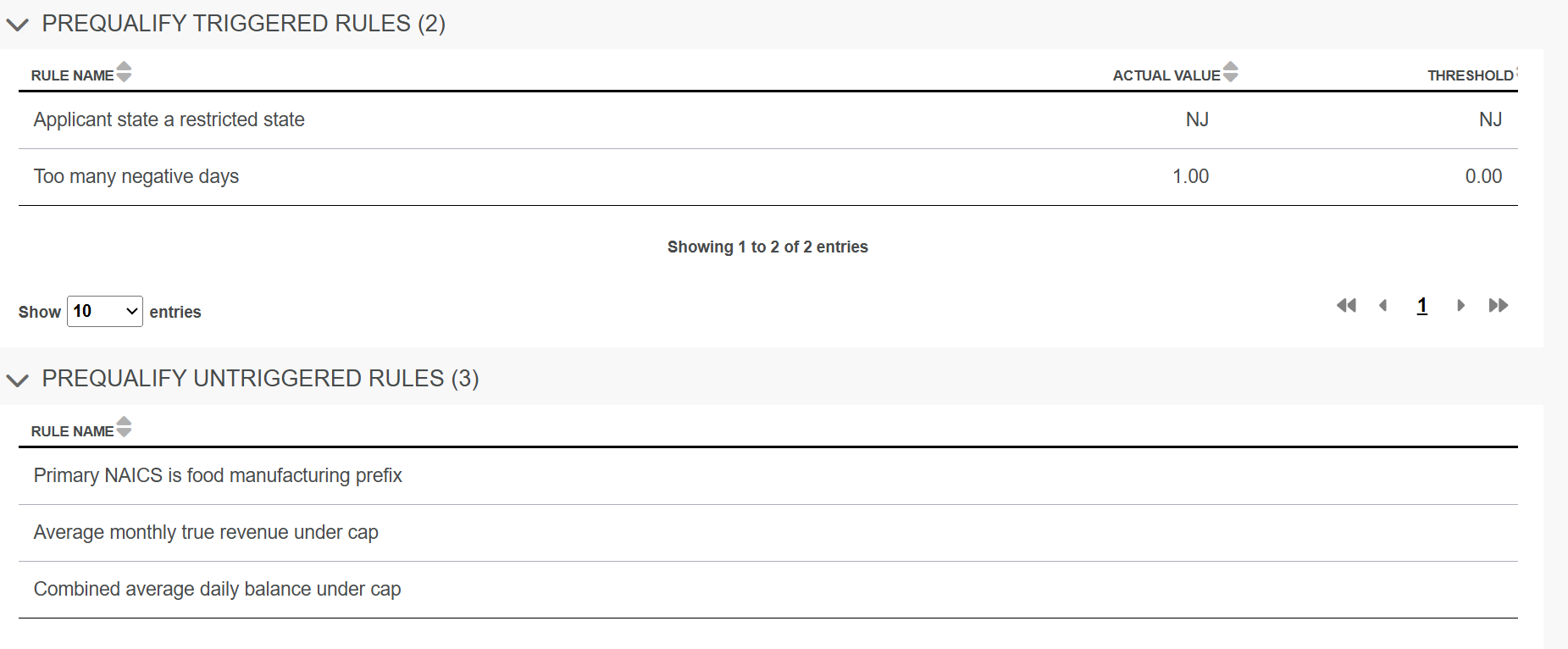
The Prequalify Rules and Prequalify Passed Rules Scorecard sections are now called Prequalify Triggered Rules and Prequalify Untrigged Rules.
This renaming clarifies which Prequalify rules are triggered and which ones are not when you run an application.
🔎 Here's an example.
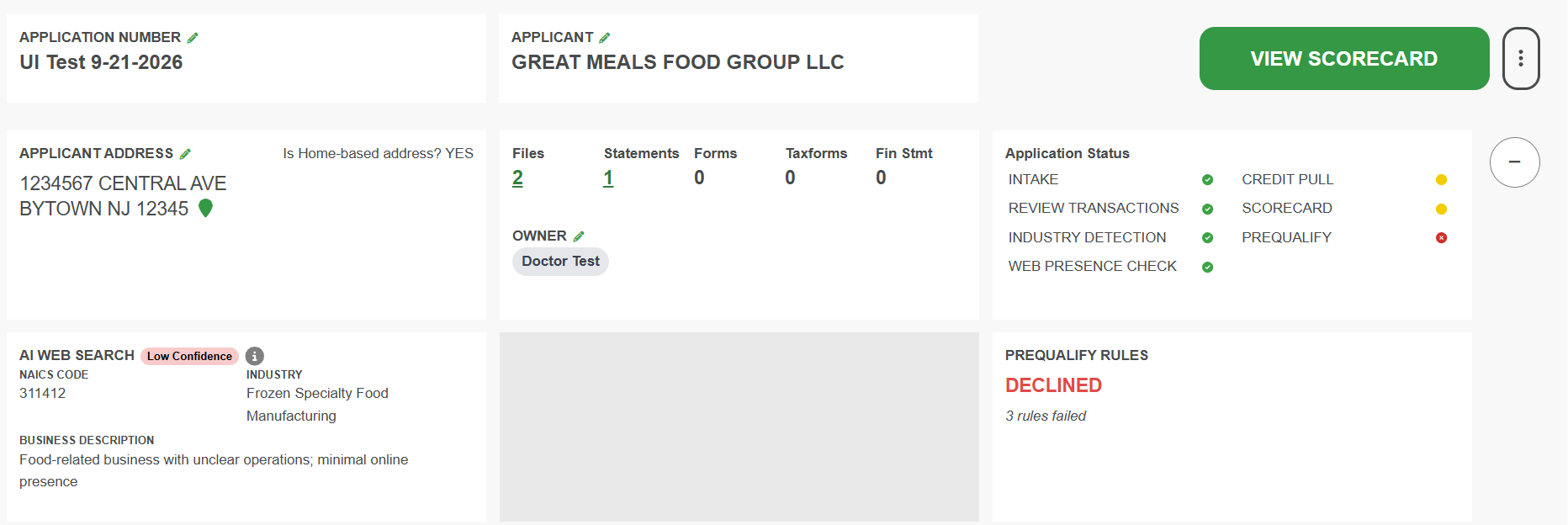
The Home page of the Insights UI now has a new look and feel. This new redesign appears after you run an application.
This redesign gives you:
- A better snapshot of an applicant, including a new detail called Credit Pull.
- A three-dot menu where you can choose to review all statements or go directly to the Scorecard.
🔎 Here are some screenshots examples of this new design.
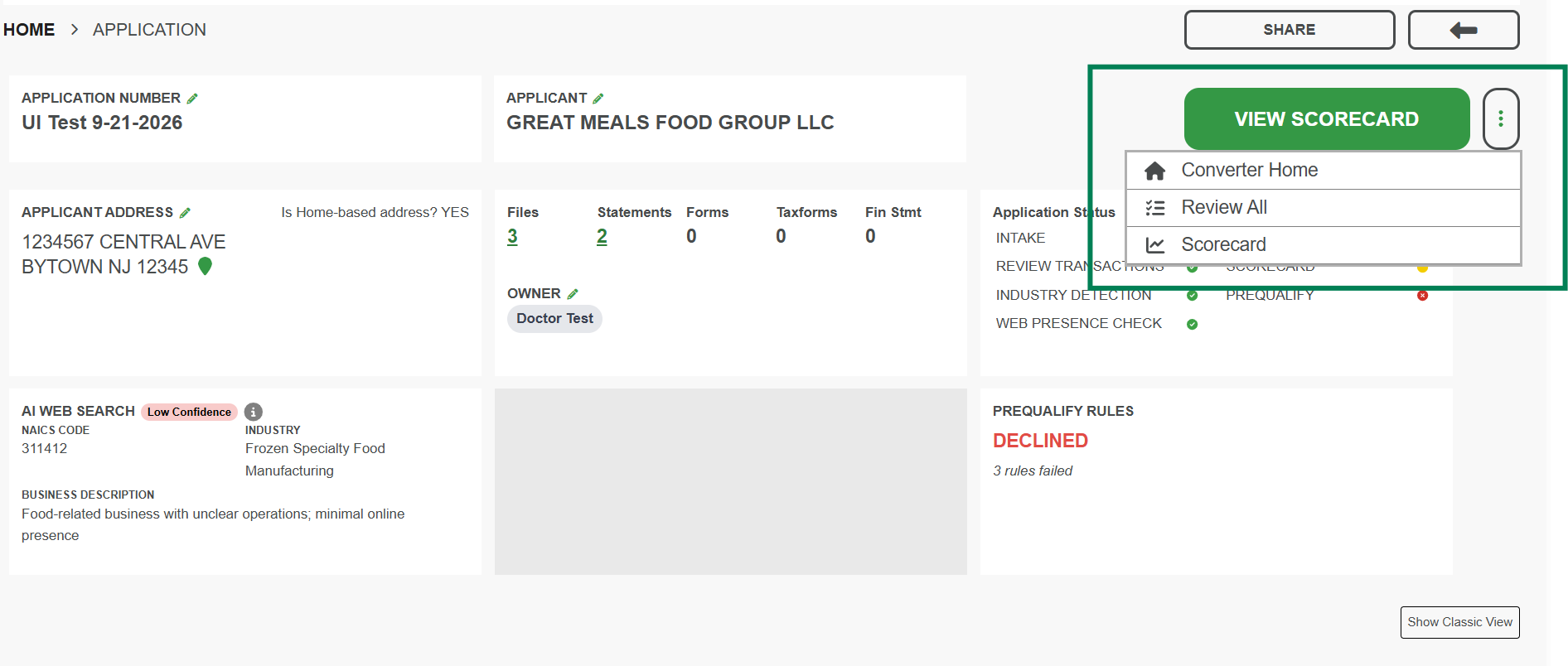
You can also focus on viewing the Application Status details on the Home page.
🎯 To do this, click the plus button to the right of the Application Status pane.
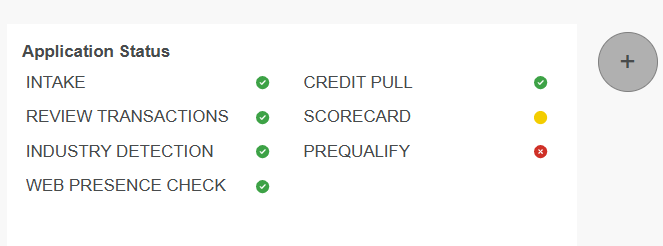
Then, the Application Status comes into focus.
🔎 Here's an example.

This feature is in beta. If you have questions, please contact MoneyThumb Support.
You can now process a soft credit pull of a business in Insights UI. For details on how to run this feature, see Credit Pull Guide.
This feature is in beta. If you have questions, please contact MoneyThumb Support.
/creditreport returns the results of a soft credit pull on an application form. To process a soft credit pull in our API:
- Run an application form in either
/makecsvoruploadpdfs. - Look for the
idunderownersin the response and copy it. - Paste this
idin theowneridfield of the/creditreportendpoint.
🔎 Here's an example.
{
    "message": "1 of 1 credit pulls failed - see results for details",
    "results": [
        {
            "ownerId": 1257,
            "ownerName": "Taylor Testowner",
            "status": "VALIDATION_ERROR",
            "errorMessage": "Owner SSN must be exactly 9 digits"
        }
    ]
}
For details, see Credit Report.
There's a new owners section in the /makecsv and uploadpdfs responses. This section shows owner details when you run an application form.
🔎 Here's an example.
"owners": [
        {
            "id": 1281,
            "applicationId": 955296,
            "name": "Taylor Testowner",
            "title": "President",
            "ownerPercent": 100,
            "phone": "619-555-0103",
            "email": "owner@example.com",
            "street": "200 Example Street",
            "city": "San Diego",
            "state": "CA",
            "zip": "92101",
            "dateOfBirth": "1980-01-01",
            "created": null,
            "ssnCharacterCount": 9
        }
    ]
}Prequalify now accepts app form data because of new rules. Using these rules, Prequalify can now determine whether to accept or decline a business based on the data found in the app forms.
To enable these prequalify rules, please contact MoneyThumb Support.
The NAICS code (AI generated) form field shows the NAICS code and category of a business.
🔎 Here's an example.

For the /makecsv and /uploadpdfs endpoints, there's a new parameter called usenaicsai. This returns a business's NAICS code and category in two response fields:
naicsCodeDerivedshows the NAICS code.naicsTitleDerivedshows the NAICS category.
If you set usenaicsai=true, the NAICS values populate these fields. Otherwise, they return null.
🔎 Here's an example.
"naicsCodeDerived": "72251",
"naicsTitleDerived": "Restaurants and Other Eating Places"
Note: Make sure you also set the accounttype to autoDetect or applicationForm to return results.

MoneyThumb Briefcase is in beta. If you want access to it, please contact MoneyThumb Support.
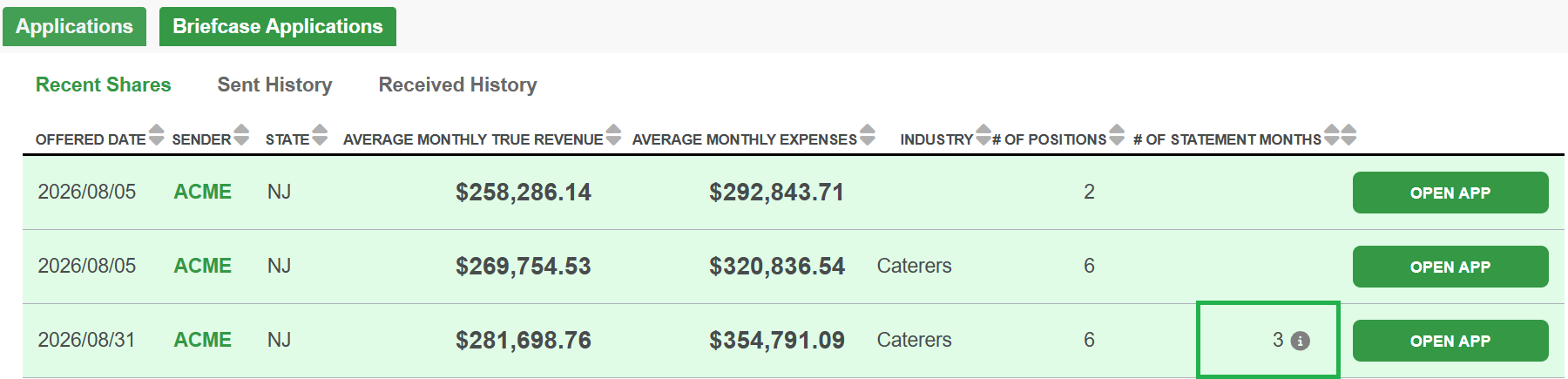
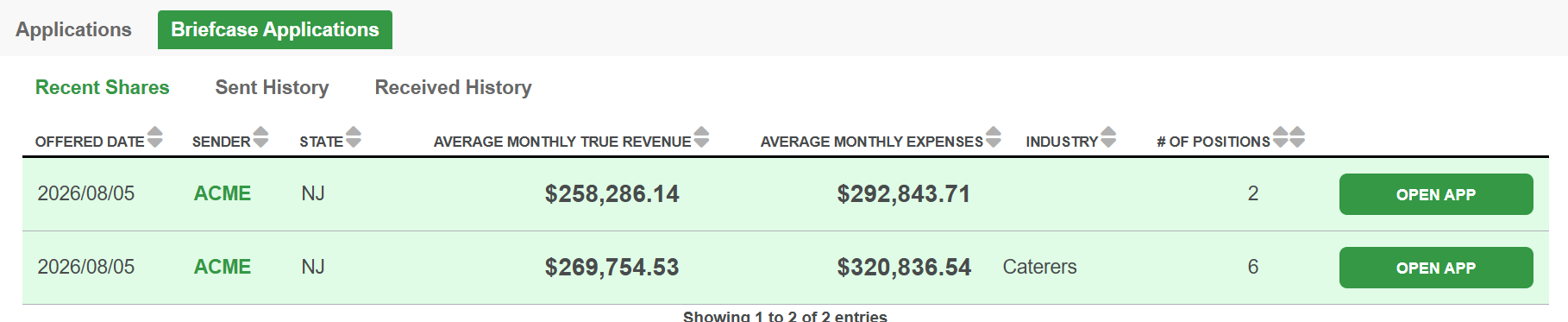
When you click the Briefcase Applications tab in Insights UI, there's now a field in Recent Shares called # of Statement Months. This field shows the number of statement months in a shared application. This number only appears in this field when you're the receiver of the share.
🔎 Here's an example.
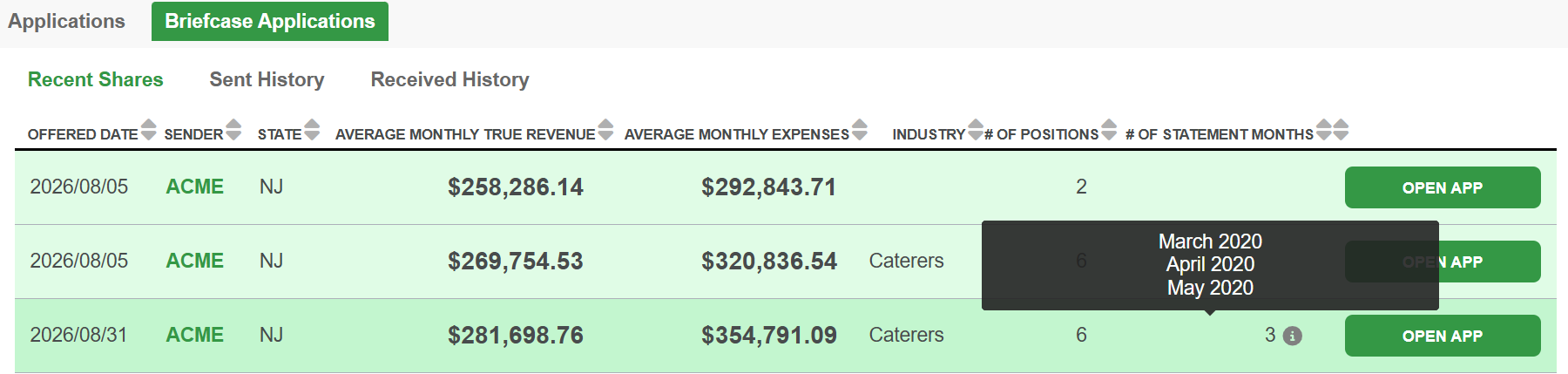
If you hover over the tooltip, it shows the statement months.
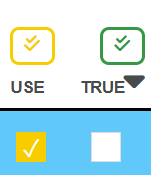
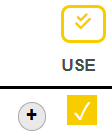
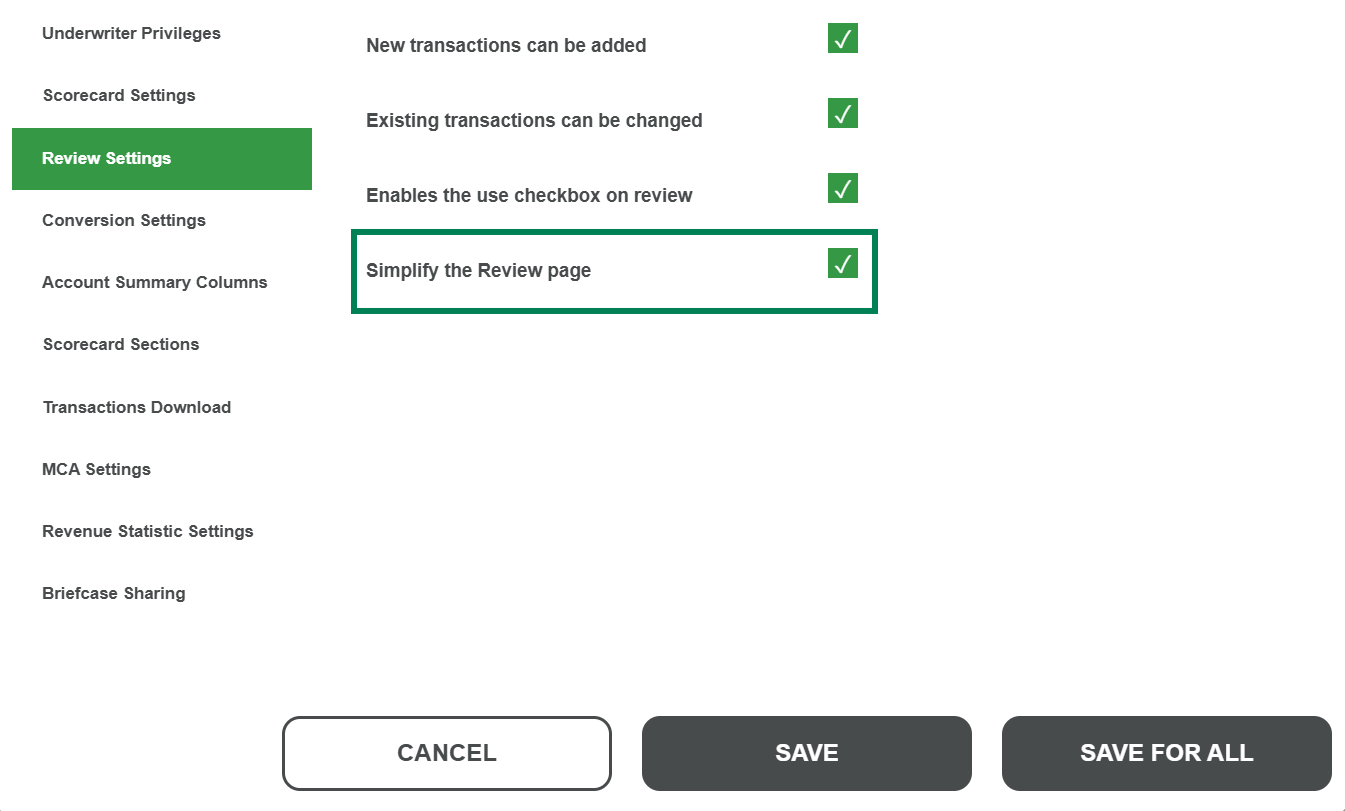
There's a new review setting called Simplify the Review page. When you use this setting, it removes the True column from a statement review.
🔎 Here's an example of what this looks like before selecting Simplify the Review page and after.
🎯 To use the Simplify the Review page setting:
- Log into the Insights UI.and select Underwriter Settings.
- Click Edit.
- Select Review Settings.
- Check the Simplify the Review page box.
- Click Save.
MoneyThumb Briefcase is in beta. If you want access to it, please contact MoneyThumb Support.
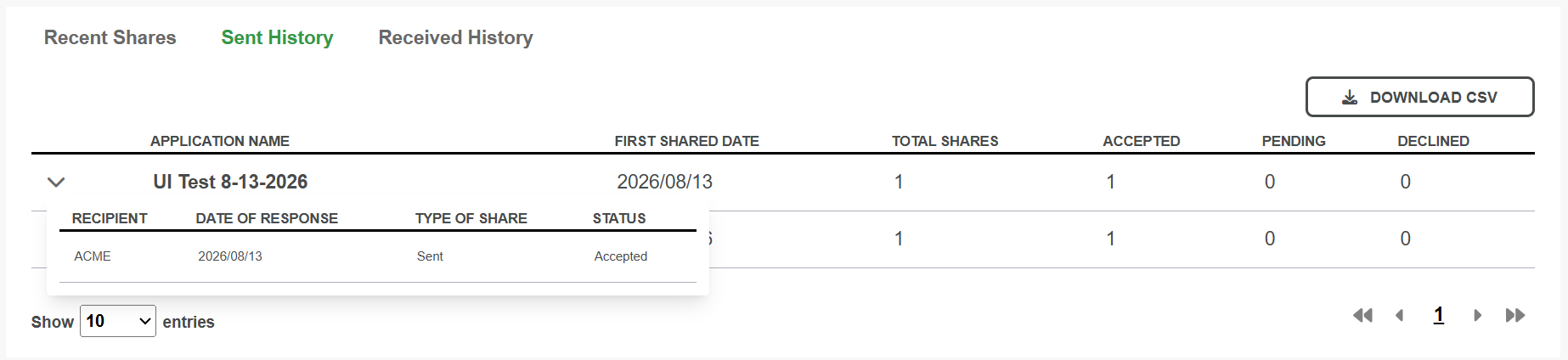
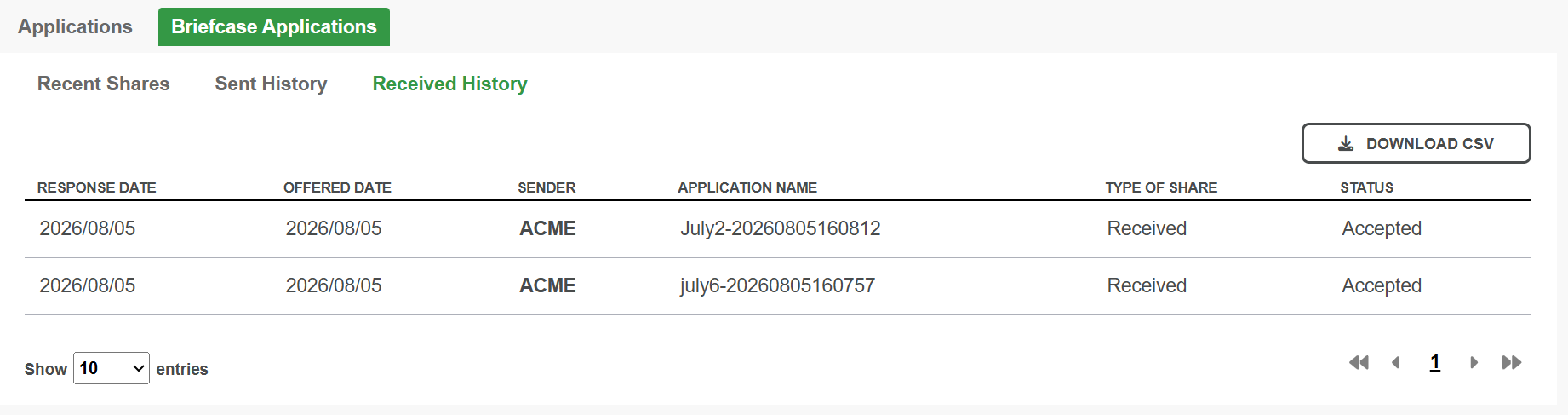
You can now view the Briefcase history in Insights UI. This shows all the shared applications that were offered within the last 30 days.
Under the Briefcase Applications tab, there are now 3 sub-tabs that break down the Briefcase history:
- Recent Shares
- Sent History
- Received History
🔎 Here are examples of what these sub-tabs look like.
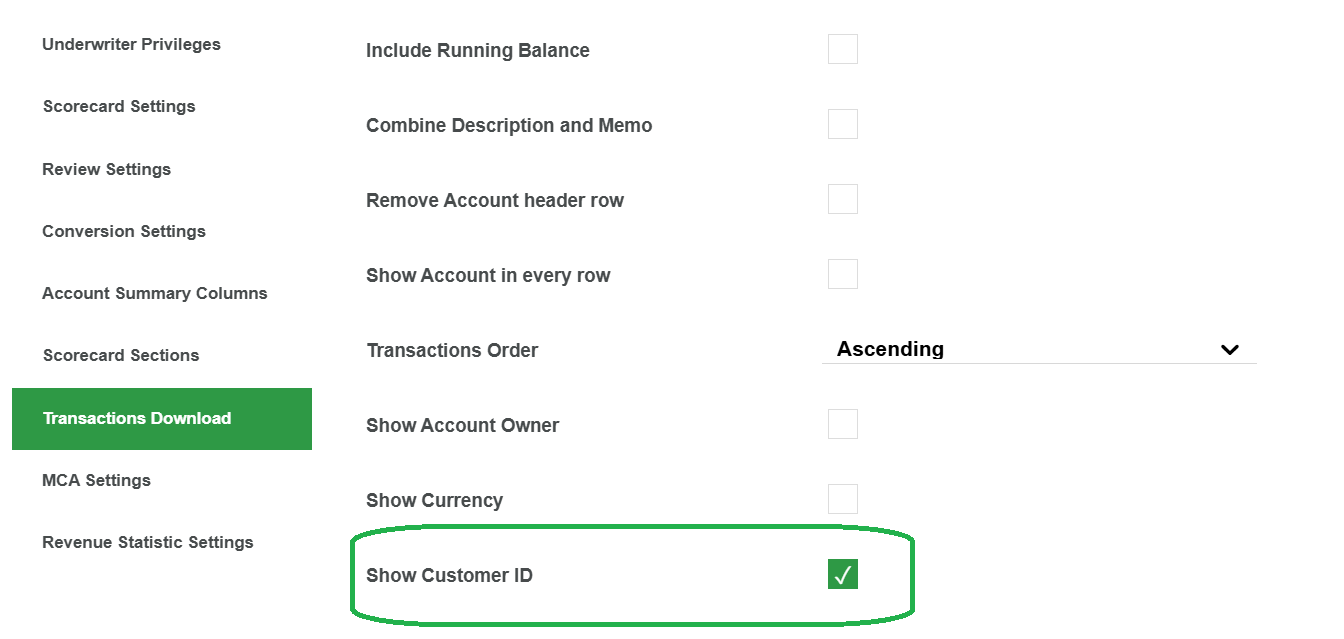
You can now add an optional statement-level field called customer_id to your MoneyThumb JSON file. So when you add this field, it returns in your responses.
🔎 Check out the example response below.
"statements": [
             {
                 "start_date": "2024-10-01",
                 "end_date": "2024-10-31",
                 "start_balance": 1234.56,
                 "end_balance": 1234.56,
                 "customerId": "123456",
🎯 To include the customer_id field:
- Log into the Insights UI.and select Underwriter Settings.
- Click Edit.
- Select Transactions Download.
- Check the *Show Customer ID box.
- Click Save.
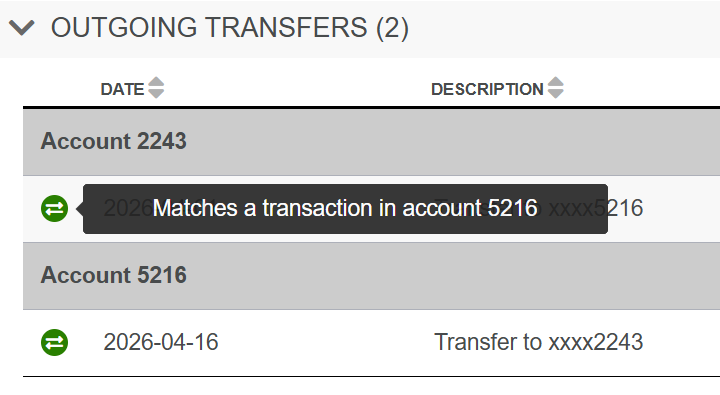
In Insights UI, you can now see whether there's a match transfer between accounts by date and amount in the Incoming Transfers and Outgoing Transfers sections of the Scorecard. When there's a match transfer, a green transfer symbol with a brief description of it appears in the Date column.
🔎 Here's an example.
You can also view these match transfers in Insights API. When there's a match transfer, it appears in the matches field of the incoming_transfers and outgoing_transfers sections of the Scorecard.
🔎 Here's an example.
 "incoming_transfers": [
            {
                "accountidx": "0",
                "id": "158496104",
                "date": "2026-04-17",
                "description": "Transfer from xxxx5216",
                "amount": "1000.00",
                "memo": "",
                "number": "0",
                "type": "",
                "matches": {
                    "date": "2026-04-16",
                    "amount": "-1000.00",
                    "accountLabel": "5216"
} This feature is in beta. If you want access to it, please contact MoneyThumb Support.
In the Insights UI, you can select a new document type called Financial Statement.
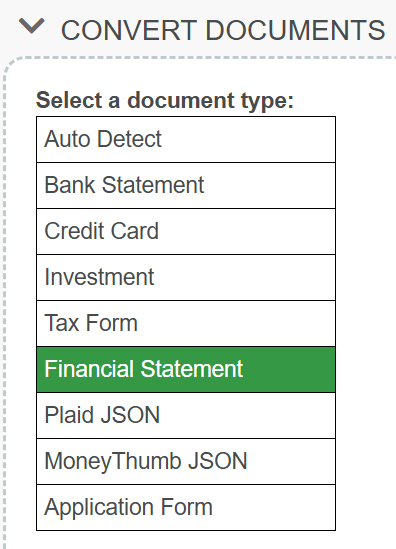
Once you run a financial statement, the Financial Statements section appears at the bottom of the screen. Click View Summary to see the summary of the financial statements.

You can also see this document type in the API when you set accounttype to financialStatement.
🔎 Here's an example.
"financialResult": {
                        "balanceSheets": [
                            {
                                "periods": [
                                    {
                                        "sections": {
                                            "sumTo": {
                                                "label": "ASSETS",
                                                "total": 171300.0,
                                                "amountQualifier": "PRESENT_AND_MATCHING",