This guide walks administrators through the Admin Settings for Insights UI.
To open Admin Settings:
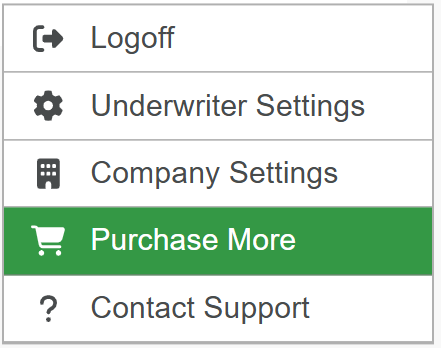
- Hover over user email to access the drop-down menu.
- Select the setting you're looking for.
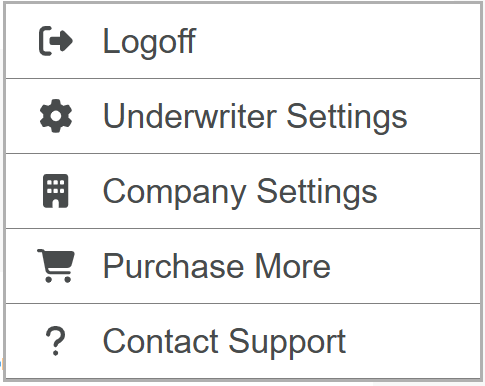
Underwriter Settings is where you add or remove underwriters or adjust their settings. You can also adjust your own settings here too. To go to Underwriting Settings for an underwriter:
- Open the Admin Settings Menu.
- Select Underwriter Settings.
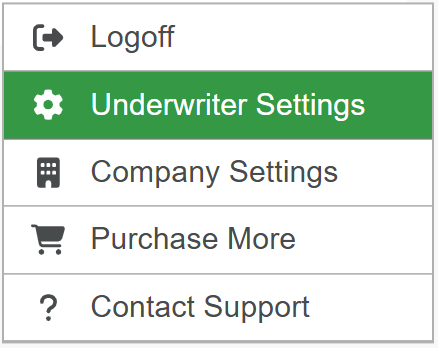
- Click Edit in the underwriter's profile.

- Select the option in the Underwriter Settings Menu you want to view or edit.
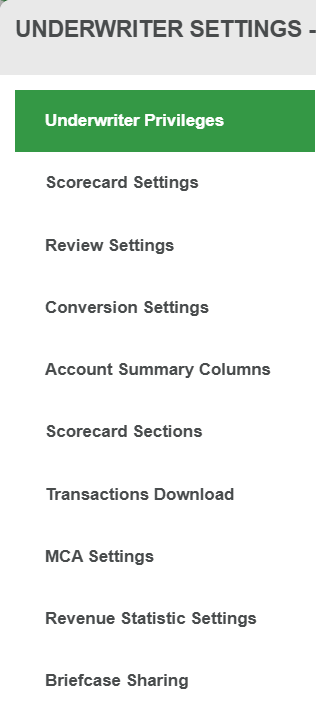
The following briefly explains these settings.
- Underwriter Privileges - Sets the privileges for the underwriters on account.
- Scorecard Settings - Sets some of the calculations performed in the MoneyThumb Scorecard.
- Review Settings - Configures options available for the Review page. For details, see Review Statement Guide.
- Conversion Settings - Configures some settings for how files are converted.
- Account Summary Columns - Sets the columns in the Statements Summary section of the MoneyThumb Scorecard.
- Scorecard Sections - Sets the sections shown in the MoneyThumb Scorecard.
- Transactions Download - Configures the output of downloaded transactions.
- MCA Settings - Determines when repeating transactions from companies that offer MCA and other services are classified as MCA positions.
- Revenue Statistic Settings - Sets which calculations to include in the revenue statistics shown in the Statements Summary section of the MoneyThumb Scorecard.
- Briefcase Sharing - Allows your underwriters to share documents with others. (Only available when Briefcase is enabled.) For details, see MoneyThumb Briefcase.
 MoneyThumb Briefcase is in beta. If you want to access it, please contact MoneyThumb Support.
To add an underwriter:
Open the Admin Settings Menu.
Select Underwriter Settings.
Click the Add Underwriter button at the bottom-right corner of the Underwriter Settings dialog.

Add the underwriter's information in Underwriter Privileges.
Click Save.
To remove an underwriter:
Open the Admin Settings Menu.
Select Underwriter Settings.
Click on the underwriter(s) you want to remove.
Click Delete in the upper-right corner of the Underwriter Settings dialog.

A message appears in the UI to confirms you deleted an underwriter. See example.
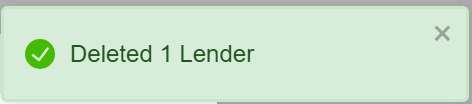
Once you're done, click Close.
To adjust an underwriter's settings:
Open the Admin Settings Menu.
Select Underwriter Settings.
Click on the underwriter(s) you want to adjust.
Click Edit in the Underwriter Settings dialog.
Go through the Underwriter Settings you want to adjust.
Click Save.
💡 Tip: If you want to do this globally for your underwriters, click Save For All.
Company Settings is where you adjust the settings for your organization. To open Company Settings:
- Open the Admin Settings Menu.
- Select Company Settings.
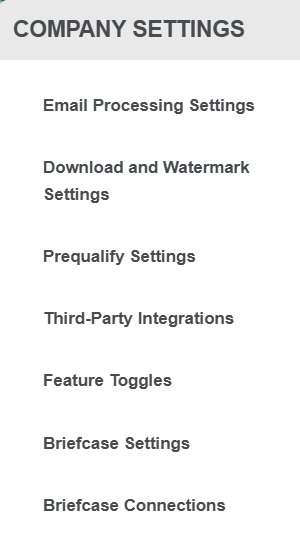
The following briefly explain these settings.
- Email Processing Settings - Sets the options to send applications by email.
- Download and Watermark Settings - Configures the watermark options you can place on documents. For details, see the Zip archive endpoint.
- Prequalify Settings - Allows underwriters to perform prequalify on applications. (Only available when Prequalify is enabled.)
- Third-Party Integrations - Allows Insights UI to integrate with LendSaaS and Google Cloud platforms.
- Feature Toggles - Allows underwriters to perform AI Web Search and to process soft credit pulls. For details on processing soft credit pulls, see Credit Pull Guide.
- Briefcase Settings - Allows your organization to use Briefcase. (Only available when Briefcase is enabled.) For details, see MoneyThumb Briefcase.
- Briefcase Connections - Creates the connections between sender and receiver in Briefcase. (Only available when Briefcase is enabled.) For details, see MoneyThumb Briefcase.
MoneyThumb Briefcase and processing soft credit pulls are in beta. If you want to access to them, please contact MoneyThumb Support.
To enable prequalify, please contact MoneyThumb Support.
To edit your Company Settings:
- Open the Admin Settings Menu.
- Select Company Settings.
- Edit the Company Setting you need to adjust.
- Click Save.
To purchase more conversions or product, go to the Admin Settings Menu and select Purchase More.
If you need further assistance, go to the Admin Settings Menu and select Contact Support.
Then, follow the instructions in the Support Portal.