Want to stay in the loop with PDF Insights? Check out this changelog. It shows the new features and updates for the past 3 months. If you have any questions, feel free to reach out to Support.
After you perform a AI web search, you can now see the industry confidence level of a company. In the Industry section of the UI, the search results can show either:
- Low Confidence
- Medium Confidence
- High Confidence
🔎 Here's an example.
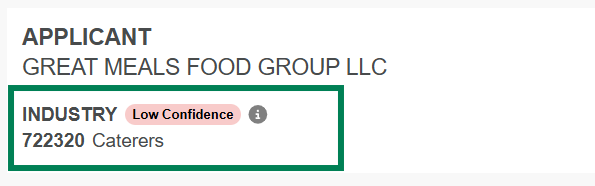
Also, if you hover over Industry, you can see more information about the type of business. For details, see AI Web Search Tooltip.
You can also use see the industry confidence result of the AI web search using our API.
Let's say you run makecsv or uploadpdfs, the result appears in the confidence field. The response can show either:
"Low""Medium""High"
🔎 Here's an example.
"webSearch": {
            "industry": {
                "primary": {
                    "naics": 722310,
                    "title": "Food Service Contractors",
                    "explanation": "Based on the business name 'GREAT MEALS FOOD GROUP LLC', this most likely represents a food service contractor. The use of 'MEALS' and 'FOOD GROUP' suggests a business engaged in preparing and providing food services. NAICS 722310 encompasses establishments providing food services at institutional, governmental, commercial, or industrial locations based on contractual arrangements, which aligns with a 'Food Group' business model that would contract to provide meal services.",
                    "weight": 35.0,
                    "confidence": "Low"
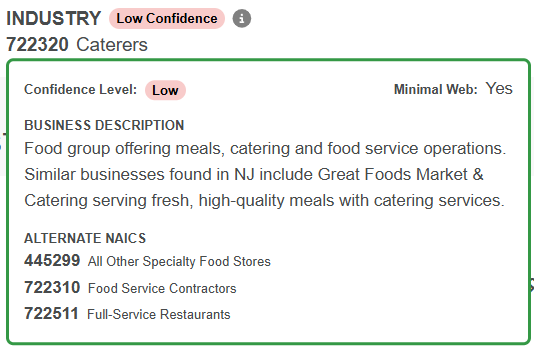
},Once you perform an AI Web Search on a company, you now see the following:
- Confidence level.
- Whether it has a minimal web presence.
- A business description
- Alternative NAICS codes.
To see this information, simply hover over the Industry section of the UI.
🔎 Here's an example.
🎯 If you haven't enabled AI Web Search yet, click Company Settings and select Feature Toggles. Then, check the Enable Web Search box and click Save.

- MCA Changes: Shows the MCA transactions where the withdrawal amounts changed.
🎯 To include this section, use Underwriter Settings to update Scorecard Sections in the Insights UI.
For the makecsv and uploadpdfs endpoints, there's a new parameter:
fileurlis the URL of the file(s) to upload.If you're using
makecsv, you can place a PDF or JSON file and point the URL to it. We can retrieve the file and process it.If you're using
uploadpdfs, you can place your PDF and JSON files in one ZIP and point the URL to it. From this URL, we can retrieve the zip, unzip the files, and process them.
- Prequalify Passed Rules: The list of rules that passed prequalification. This information only appears if you have prequalify enabled. To enable prequalify, please contact MoneyThumb Support.
🎯 To include this section, use Underwriter Settings to update Scorecard Sections in the Insights UI.
landingURLshows the name of the landing. For details, the Embedding Guide and the signedURL endpoint.
- For added security to API access, we now offer CIDR-based whitelisting for your company. This allows you to restrict which servers or networks can run our API calls in your account. To set up CIDR whitelisting, please contact Support.
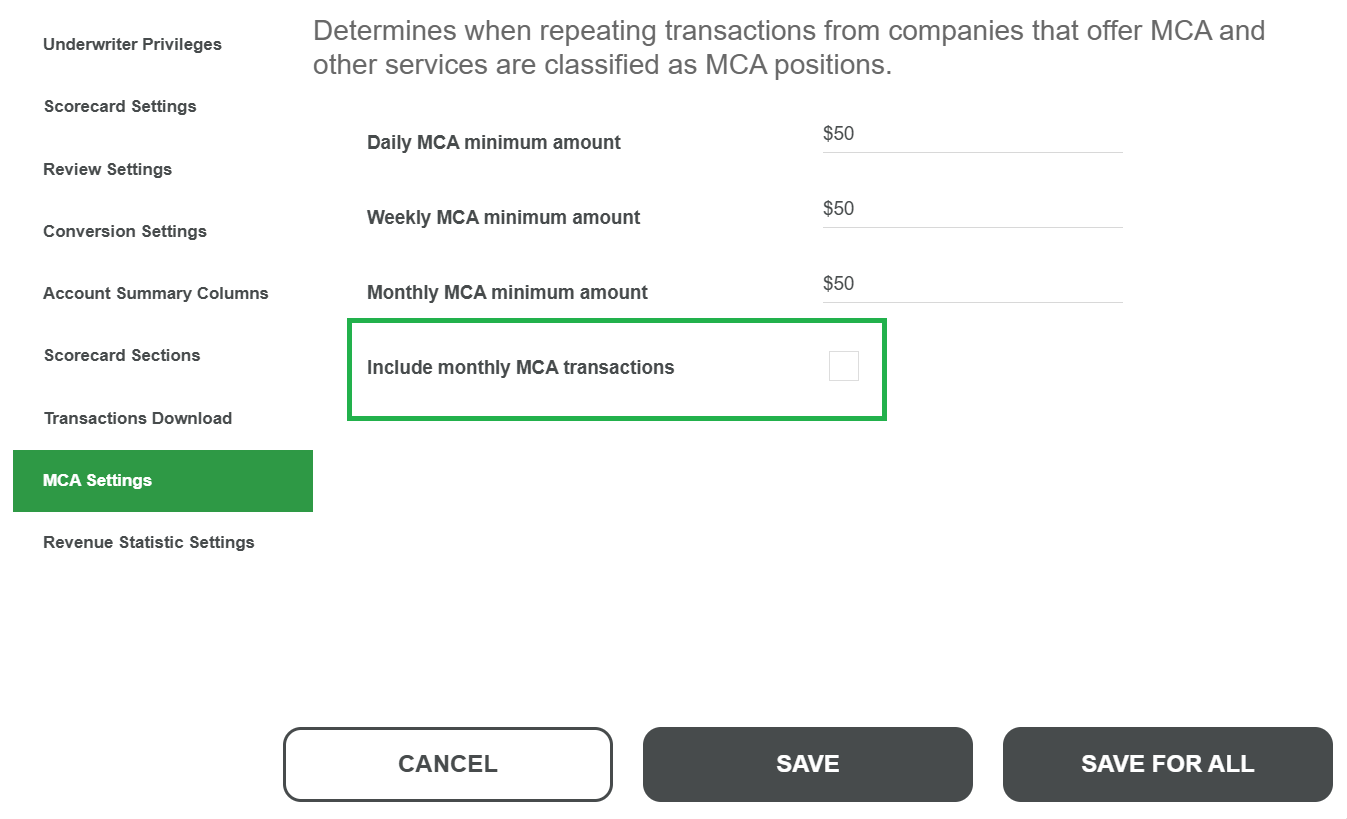
- MCA transactions with a monthly frequency are included in the Scorecard calculations by default. You can now exclude MCA transactions with a monthlty frequency from the Scorecard calculations.
🎯 To exlude these transactions:
- Log into the Insights UI and select Underwriter Settings.
- Click Edit.
- Select MCA Settings.
- Uncheck the Include monthly MCA transactions box.
- Click Save.
uniqueTidis the unique tracking id for each statement in a file. It returns astid-N.